 Slack integration
Your Unified Inbox, approved from Slack.
Every reply from every campaign and client lands in the Underfive Unified Inbox. When an inbox agent drafts a reply that needs a human, the draft shows up in your Slack channel with Approve and Edit buttons. Meeting booked alerts and reply notifications land in the same place.
- 50 free replies
- No credit card
- One channel per client
# client-acme 
New reply from Jordan Meyer via Email Bison · classified Interested · draft ready

"This looks interesting. What does pricing look like for a team of eight?"
Hey Jordan, eight seats puts you on our Team plan. Happy to walk you through it on a quick call. Does Thursday at 10:30 or Friday at 2:00 work?
 Approved by Alex Walker · sent via Email Bison · 2:16 PM

 Email Bison
  Smartlead
  Instantly
  PlusVibe
 Human oversight without the tab switching.
Inbox agents answer most replies on their own in under 5 minutes. The ones you want to see first should not sit in a queue nobody checks. Slack is where your team already is, so that is where the approvals go.
From draft to sent
Approve a draft straight from the Slack message, or edit it first. The reply goes out through the tool and sender that received it. You never open another tab.
You pick what posts
In Step 5 of your inbox agent setup, choose which reply categories trigger a Slack notification. Interested and Meeting Request, yes. Not interested, probably not.
Channel routing for agencies
Each Underfive workspace posts to its own Slack channel. Every client keeps its own approvals and alerts, while the Unified Inbox shows all of them in one place.
Connected in three steps
Authorize once, pick a channel, choose what posts.
Connect Slack from Integrations
In Underfive, go to Settings, then Integrations, and open the Slack card. Click Connect Slack and authorize Underfive for your Slack workspace. That is the only time you leave Underfive.
- One authorization per Slack workspace
- No webhook URLs to copy
- Works on desktop and mobile Slack
Settings · Integrations Google Calendar  GoHighLevel
 Choose a channel and categories per workspace
Pick the Slack channel each Underfive workspace should post to. Agencies usually give each client its own channel. Then, in Step 5 of your inbox agent setup, select which reply categories should post to Slack so negative replies never add noise.
- One channel per workspace or client
- Categories like Interested, Meeting Request, and Referral
- Auto-sent replies can post too, so you see what went out
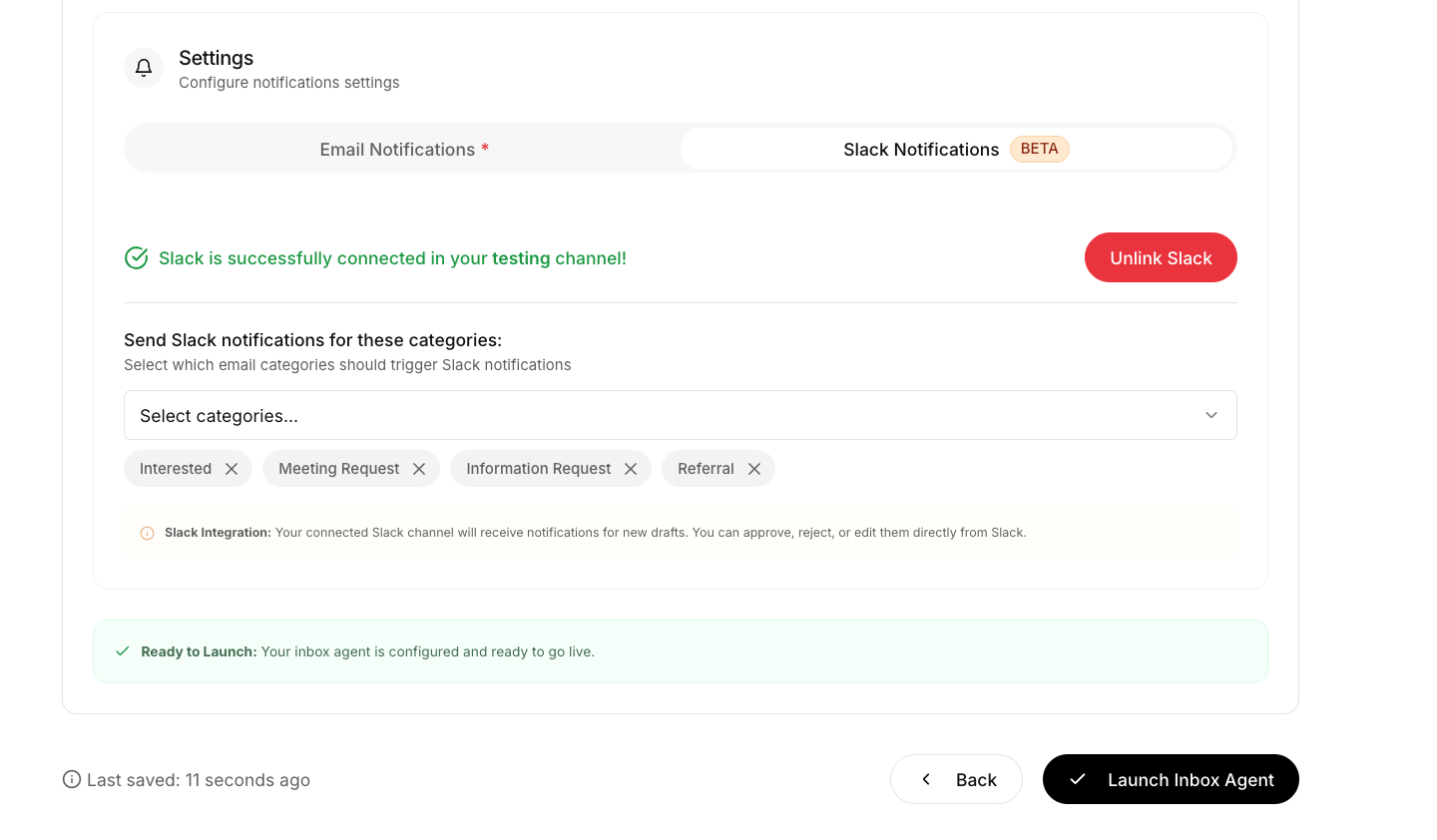
Step 5 of your inbox agent setup: choose the categories that post to Slack.
Approve, edit, or just watch from Slack
When an inbox agent drafts a reply that needs approval, the draft lands in your channel next to the prospect's message. Approve it in one click or edit it first. Replies set to auto-send post a copy, so the whole team knows what was sent.
- Approve in one click
- Edit the draft before it goes
- Meeting booked alerts with the time and attendee
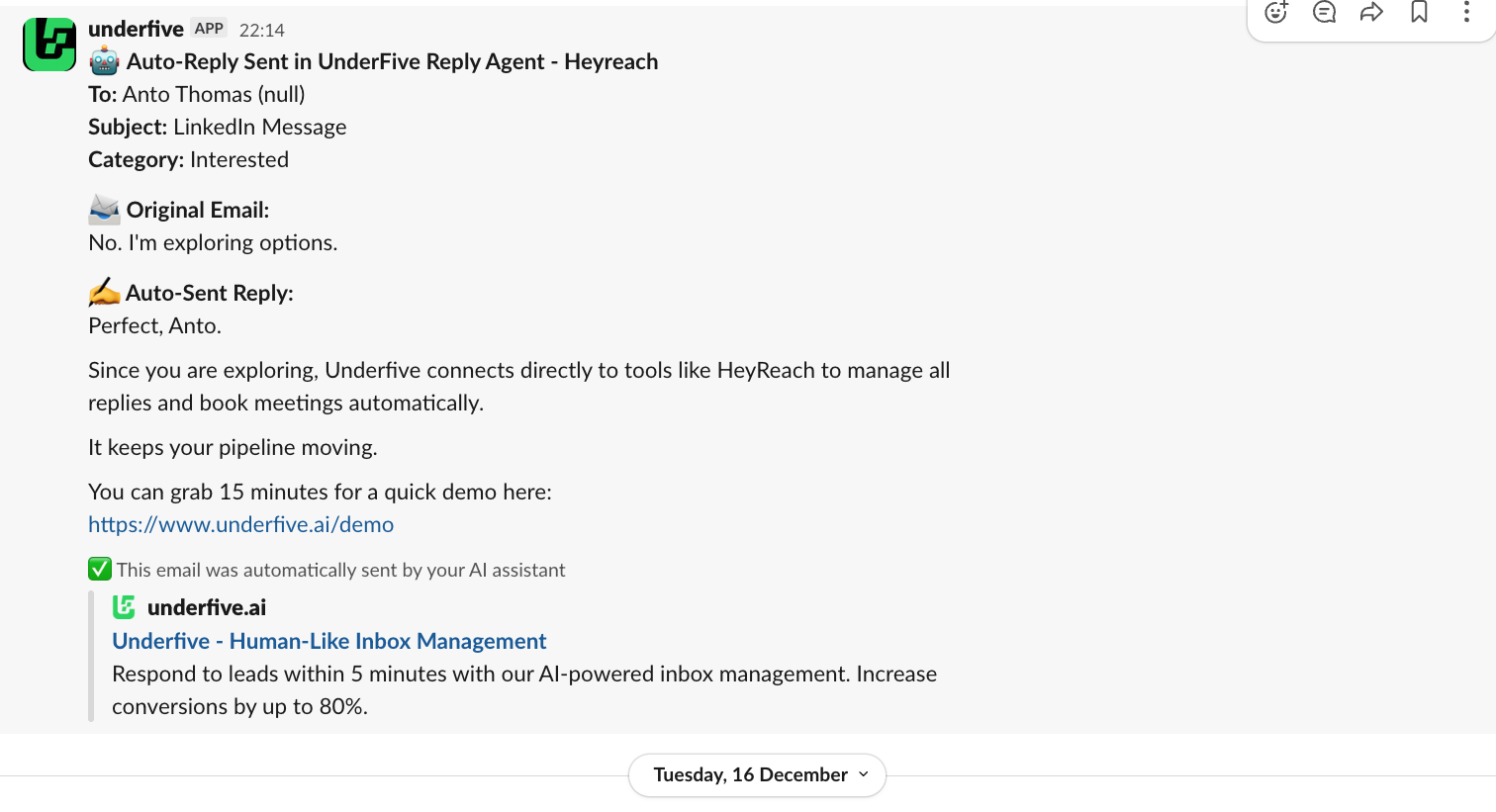
A draft waiting for approval, as it appears in Slack.
Auto mode still keeps you in the loop
Categories set to auto-send go out without waiting. Turn on Slack for those categories too and every sent reply posts to the channel, so the team sees exactly what went out without approving each one.
What lands in your channel
Every event from the Unified Inbox you choose to hear about, and whether you can act on it from Slack.
| Event | What you see in Slack | Approve / Edit |
|---|---|---|
| Reply received, auto-sent | The prospect's message and the reply the agent sent. | FYI |
| Draft needs approval | The prospect's message, the draft, and Approve and Edit buttons. | |
| Meeting booked | The time, the attendee, and the calendar it was booked on. | FYI |
| Follow-up scheduled | The date the agent will circle back on a quiet or "not right now" thread. | FYI |
| Agent needs attention | A reply the agent could not classify, waiting in the approval queue for a human. |
Which of these post is up to you, per workspace and per reply category. FYI rows keep the team informed. Checked rows carry Approve and Edit buttons.
Slack integration FAQ
Everything people ask before connecting.
Can I approve replies from Slack?
Yes. When an inbox agent drafts a reply in a category set to Require Approval, Underfive posts the draft to your Slack channel with Approve and Edit buttons. Approve sends the reply through the tool and sender that received the original message.
Can I edit a draft before approving it in Slack?
Yes. Click Edit on the Slack message, change the draft, and send it. You do not have to open the Underfive app.
Do I get Slack notifications when replies are sent automatically?
Yes. For categories set to auto-send, Underfive can post the prospect's message and the reply that went out, so you stay informed without approving each one.
How do I control which replies post to Slack?
In Step 5 of your inbox agent setup, select the categories that should trigger a Slack notification. Many teams keep Interested, Meeting Request, and Referral and skip negative replies.
I run several clients. Can each client have its own channel?
Yes. Each Underfive workspace posts to the Slack channel you choose for it. Give every client workspace its own channel and the Unified Inbox still shows every client in one view.
Does it work on mobile Slack?
Yes. Notifications, Approve, and Edit work in the Slack desktop and mobile apps, so you can clear the approval queue from anywhere.
Can I approve replies somewhere other than Slack?
Yes. Replies that need approval wait in your Underfive queue. You can approve them from the app, from Slack, or through the Underfive MCP connector.
What do I need to set it up?
A free Underfive account and a Slack workspace you can authorize apps in. Sign up, connect Slack from Settings, then Integrations, and pick a channel. You start with 50 free replies and no credit card.
Clear the approval queue from Slack.
Connect Slack in under five minutes. Your first 50 replies are free, and every draft that needs a human shows up where your team already works.
Already on Underfive? Open Settings, then Integrations to connect Slack.